Billing & Credits System
Overview
The Credits System enables seamless credit-based usage. You spend credits when you perform AI extraction or workflow operations.
Your available credits are shown in the top bar and in the Settings → Plan & Billing page.
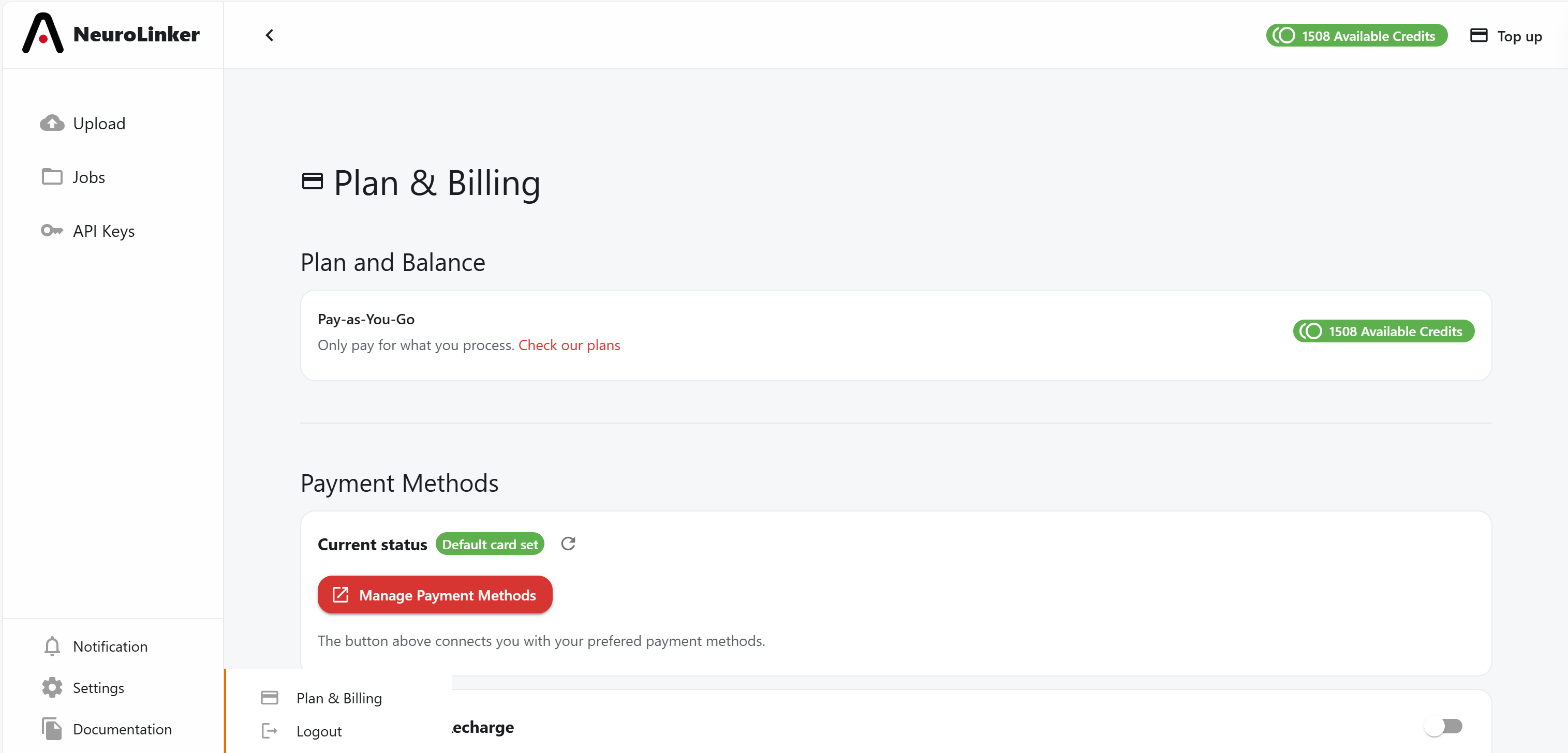
Preview Credits Consumption
Whenever you upload files, the app shows the required number of credits for that job. If your available credits are below that requirement, you won’t be able to submit the job.
How are credits spent?
When you submit a job, the required credits are placed in reserve, meaning they are temporarily unavailable. For each successful extraction, the corresponding credits are deducted. If an extraction fails, those reserved credits are refunded to your balance.
Can I go over my available credits?
No. You can only run jobs if you have the required credits available.
How can I avoid running out of credits?
Enable Auto‑Recharge in Settings → Plan & Billing. You’ll need to provide a valid payment method and the required billing information.
My job failed, will those credits be refunded?
Credits are refunded only for failed single‑document extractions, not for the entire job.
Are credits consumed the same way for the app, API, and MCP?
Yes. Regardless of whether you use the app, the API, or MCP, credits are consumed and refunded according to the same logic described above.
What’s the minimum top‑up amount?
The minimum top‑up amount is 10€.
Credit Usage Logic
Credits represent the application’s internal unit of computation.
Credits are consumed when a user:
- Executes jobs
- Uses API endpoints (via the Extraction API)
- Uses the MCP
- Stores files beyond the first 30 days (first 30 days included)
Currently:
1 € = 100 credits
Full extraction = 5 credits per processed page
Schema extraction = 2 credits per processed page
Storage = 4 credits/Gb/month
Note
Storage is free for the first 30 days after upload. From day 31, it’s billed at 4 credits/GB/month until you delete the file or it’s removed for lack of credits.
Top‑Up Process
Manual
Users can purchase credits using the Top‑Up option in the app’s top bar or in Settings → Plan & Billing.
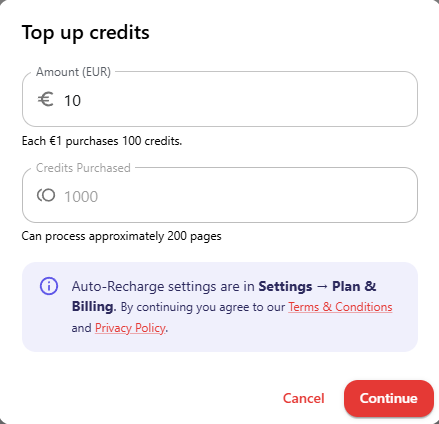
Info
If a payment is cancelled, no charge is applied.
Auto‑Recharge
To prevent workflow interruptions, enable Auto‑Recharge in Plan & Billing.
When your available balance drops below a threshold, it automatically purchases credits to reach your selected target level.
Example: If your threshold is 500 and your target is 1500, the system recharges once your balance < 500, buying exactly enough credits to reach 1500.

Info
Minimum auto-recharge is 1000 credits
Support
For billing issues or refunds:
- Email: support@ainexxo.com
© 2025 NeuroLinker — Billing, Credits & Auto‑Recharge Documentation